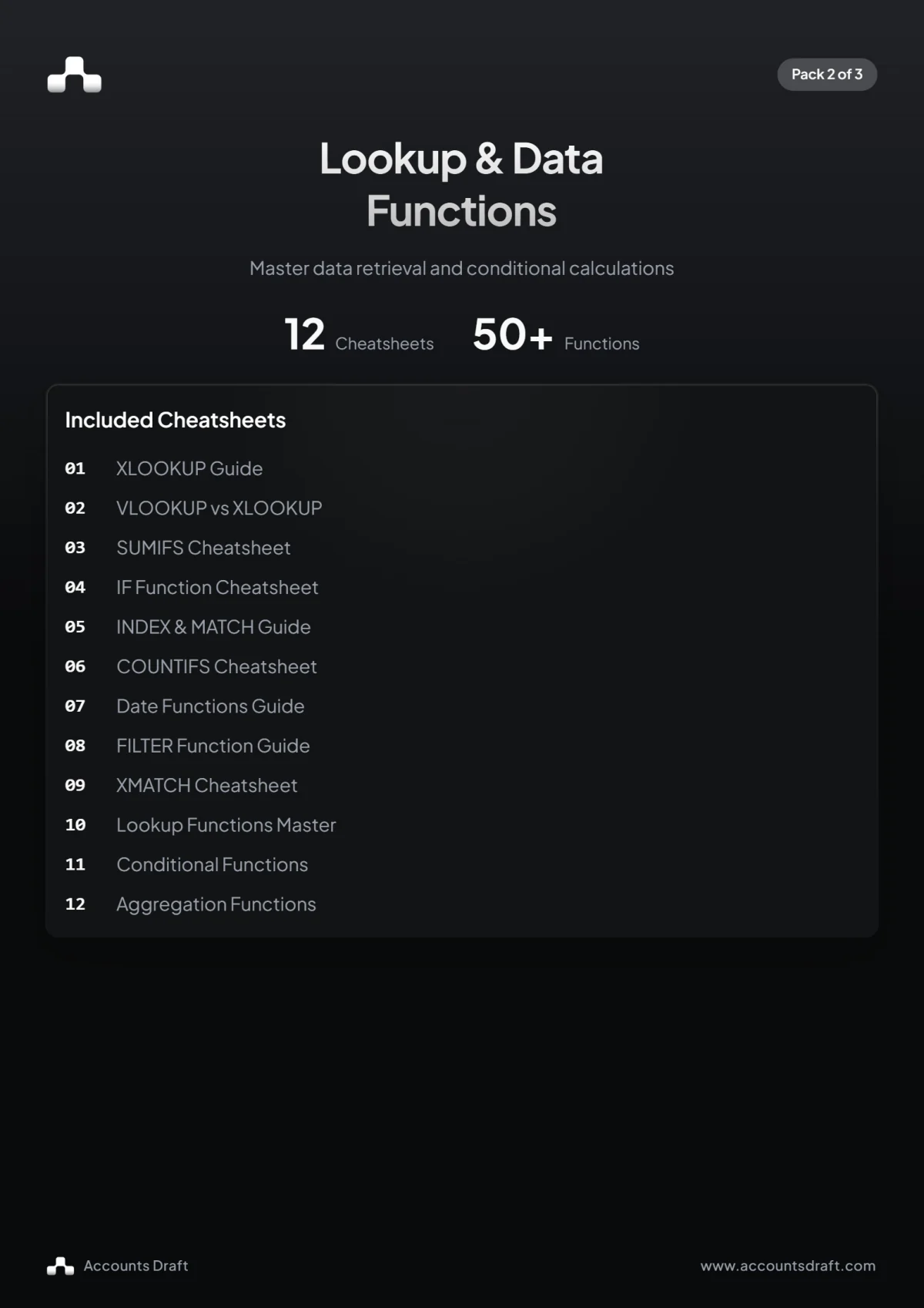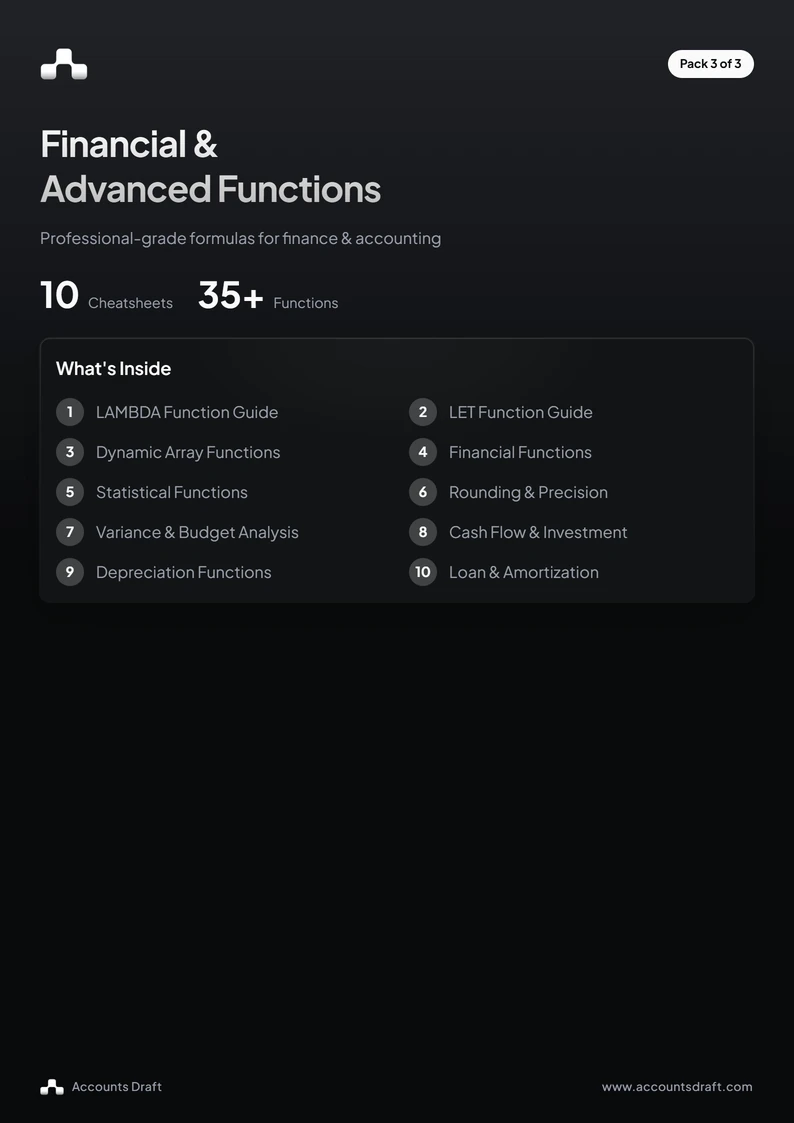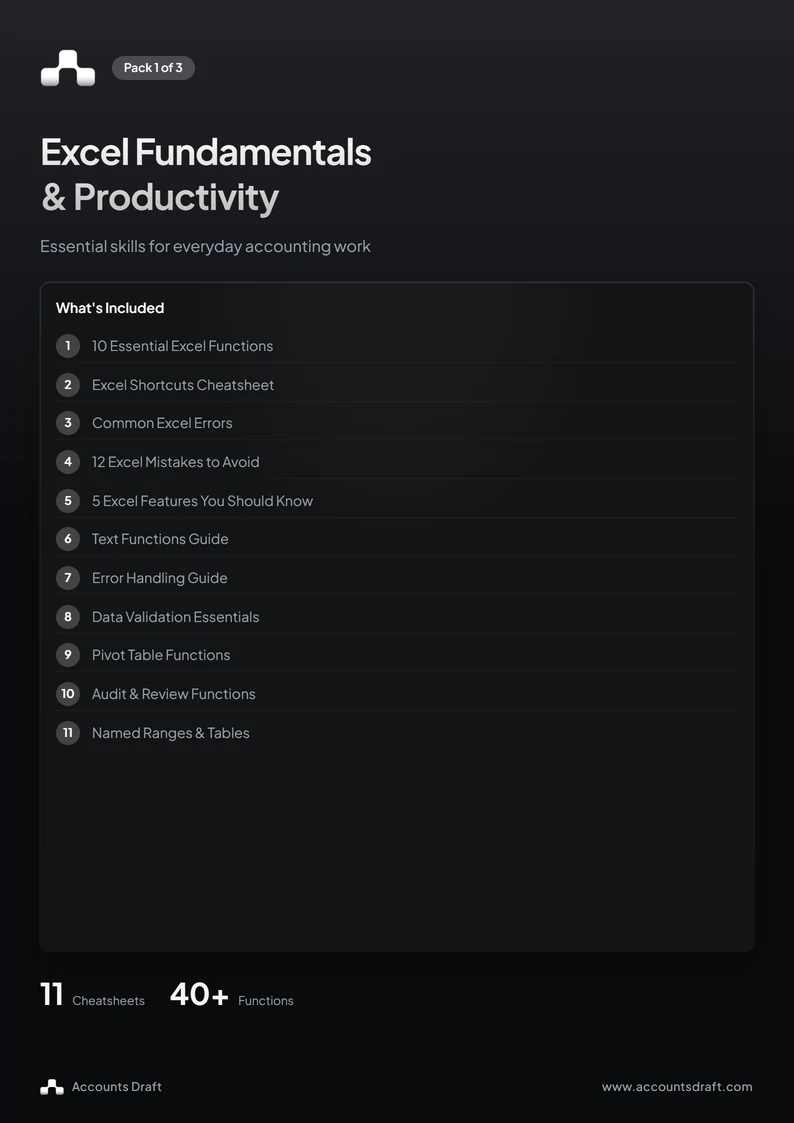
This free Excel fundamentals guide brings together 11 cheatsheets in a 14-page PDF. It covers everyday spreadsheet skills for accounting work, from essential formulas and keyboard shortcuts to data validation, PivotTables and reviewing a workbook.
Use the contents page to find a specific topic, then keep the relevant cheatsheet beside your spreadsheet while you work. The guide is labelled Pack 1: Excel Fundamentals & Productivity.
What is inside the guide?
The opening cheatsheets cover 10 essential Excel functions, keyboard shortcuts, common formula errors and 12 spreadsheet mistakes to avoid. The functions include SUMIFS, XLOOKUP, IFERROR, EOMONTH, PMT, INDEX with MATCH, XNPV, COUNTIFS, TEXT and ROUND.
The remaining pages cover useful Excel features, text functions, error handling, data validation, PivotTable functions, audit and review functions, and named ranges and tables. The features page introduces What-If Analysis data tables, PivotTables, Power Query and grouping rows or columns.
Total transactions with SUMIFS
SUMIFS adds amounts that meet more than one condition. For example, suppose column A contains client names, column B contains transaction statuses and column C contains amounts. To total paid transactions for Example Ltd in rows 2 to 100, use:
=SUMIFS(C2:C100,A2:A100,"Example Ltd",B2:B100,"Paid")The first range contains the amounts to add. Each following range and criterion tells Excel which rows to include. Keep the ranges the same size and check that the amounts are stored as numbers.
Clean text before using it in a report
The text functions cheatsheet shows how to extract part of a value, combine text, change its case and remove unwanted characters. LEFT, RIGHT and MID help split references into useful parts, while TRIM and CLEAN help tidy imported text.
To remove extra ordinary spaces and non-printable characters from the text in A2, combine the two cleaning functions:
=TRIM(CLEAN(A2))Check the cleaned result against the source before replacing the original data. The guide also includes TEXTJOIN, TEXTSPLIT, TEXTBEFORE and TEXTAFTER in its Excel 365 text functions section, so check that the functions you choose are available in your version of Excel.
Handle missing lookup results clearly
The error handling cheatsheet distinguishes IFNA, which handles #N/A, from IFERROR, which handles any error. It also includes ISERROR, ISNA and tips for investigating formulas.
For example, if A2 contains an account code, E2:E100 contains reference codes and F2:F100 contains account names, use:
=IFNA(XLOOKUP(A2,E2:E100,F2:F100),"Not found")This displays a clear message when the code has no match. Other formula errors remain visible for investigation. The common errors page also explains issues such as invalid references, wrong data types and blocked spill ranges.
Control entries with data validation
The data validation cheatsheet covers lists, numbers, dates, text length and custom rules. For a status column, you could create a dropdown containing the permitted statuses so entries use consistent wording.
Select the input cells, open Data Validation on the Data tab and choose the appropriate validation type. The PDF explains the difference between Stop, Warning and Information alerts; use Stop when an invalid entry needs to be blocked.
Summarise data and review formulas
The PivotTable cheatsheet explains GETPIVOTDATA, including examples for retrieving a total or a value that matches several fields. Use the field names and items from your own PivotTable when adapting these examples.
The audit and review cheatsheet covers FORMULATEXT and ISFORMULA, alongside checks for hardcoded values, circular references, external links, hidden rows or columns and inconsistent formulas. To check whether A2 contains a formula, use:
=ISFORMULA(A2)The named ranges and tables page then shows ways to give ranges meaningful names and use structured table references, making formulas easier to follow when reviewing or maintaining a workbook.
Keep the PDF as a practical reference
Start with the shortcuts and essential functions, then return to the cleaning, validation and review pages as you need them. Adapt the example ranges to your own workbook and test formulas on a small set of known results before using them across a report.
The download is a PDF reference guide, with no sign-up required.