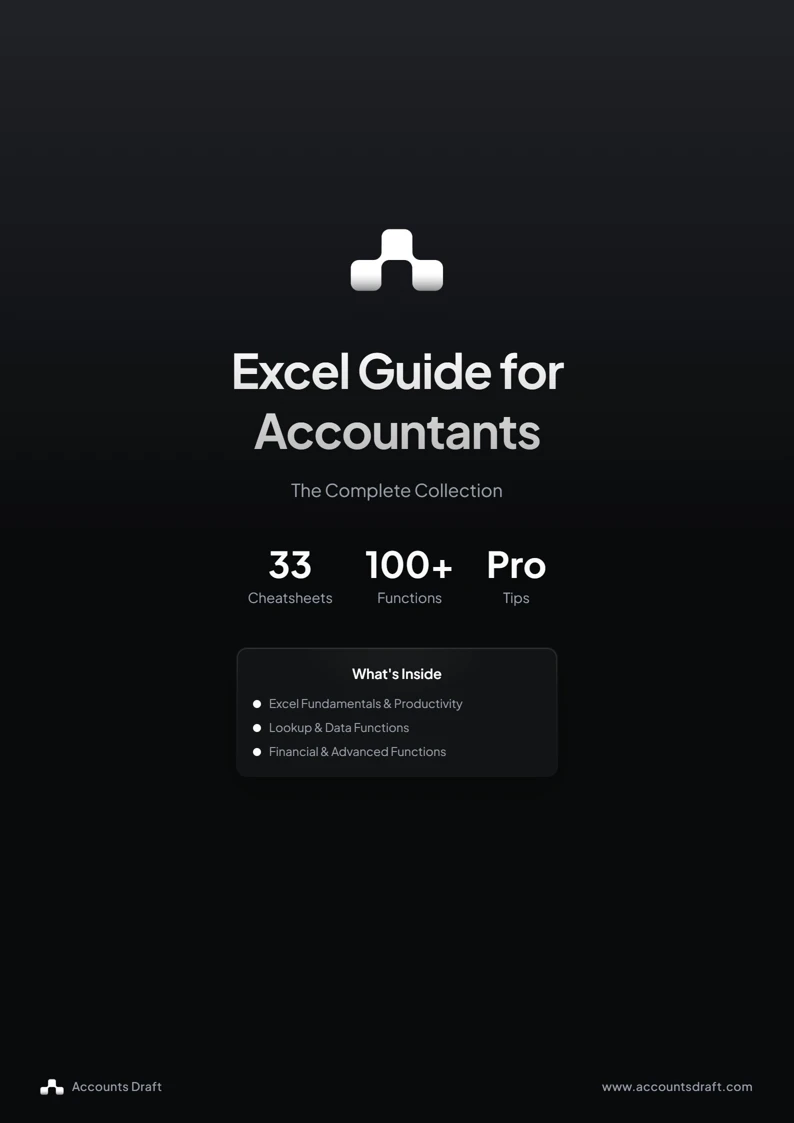
This free Excel guide for accountants brings together 33 cheatsheets in one 36-page PDF. Use it as a reference when you need to look up a formula, check a shortcut or find another way to work with spreadsheet data.
The collection covers everyday Excel skills alongside more advanced functions. Each cheatsheet groups related formulas, examples and tips so you can turn to the topic you need without reading the whole document in order.
What is inside the Excel guide?
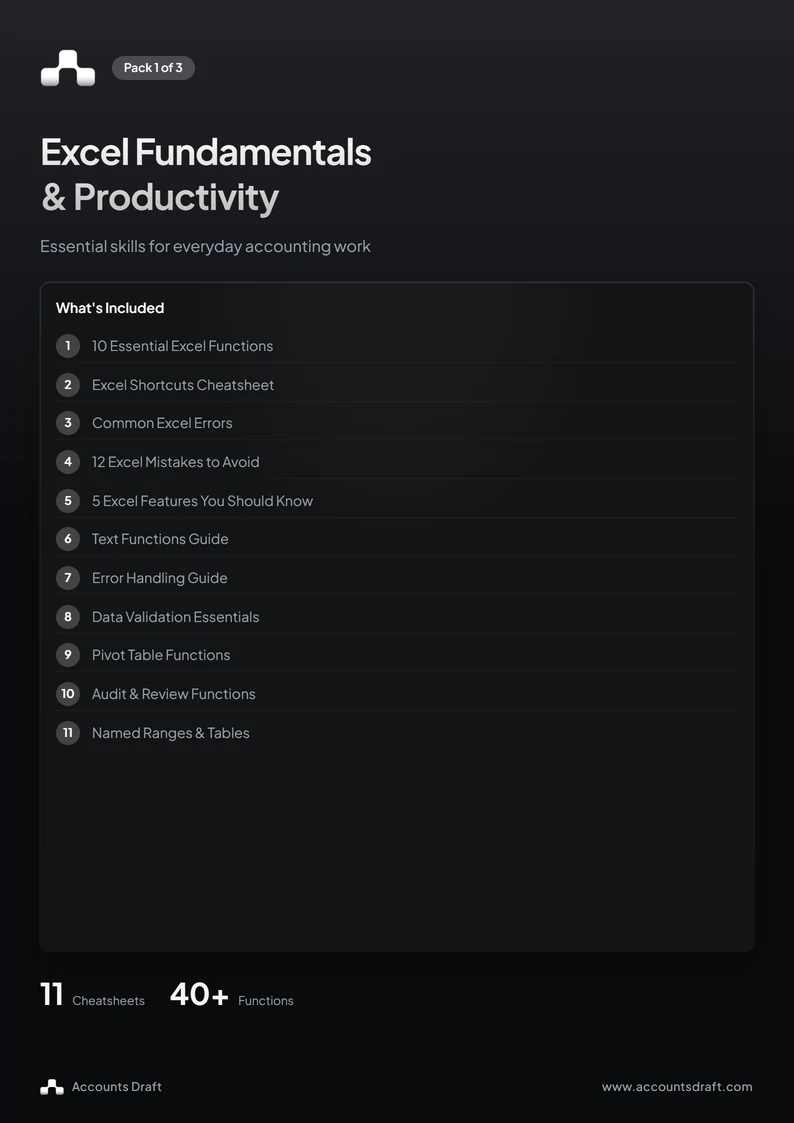
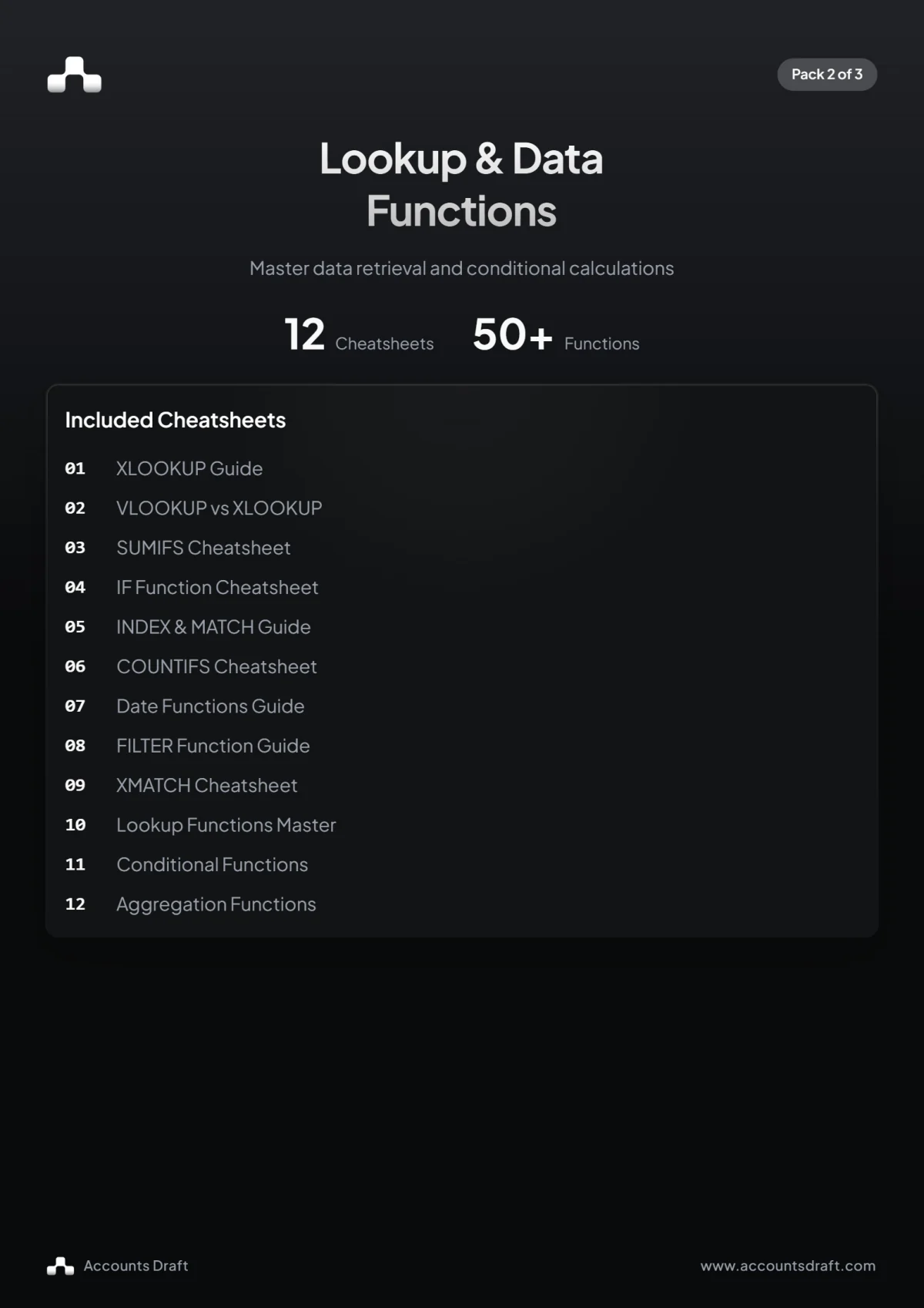
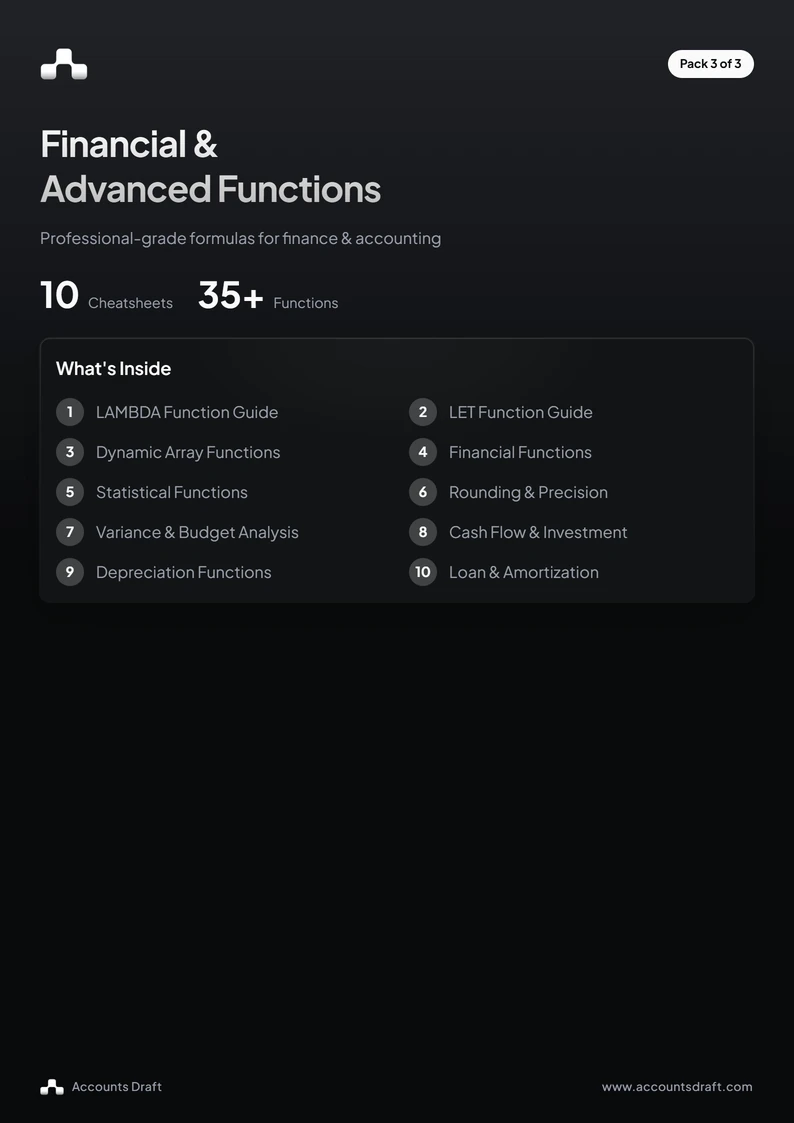
Start with essential Excel functions, keyboard shortcuts, common errors and spreadsheet mistakes to avoid. The lookup pages cover XLOOKUP, VLOOKUP, INDEX and MATCH, and XMATCH. Separate cheatsheets explain SUMIFS, COUNTIFS, IF, date functions, text functions and error handling.
For more advanced work, the guide includes FILTER and dynamic arrays, LET and LAMBDA, statistical functions, rounding and precision, data validation, PivotTable functions, named ranges and Excel Tables. It also includes Excel formulas used in variance analysis, cash flow calculations, depreciation and loan schedules.
Total values with more than one condition
SUMIFS adds values only when every condition matches. For example, put Region in column A, Status in column B and Amount in column C. To total completed entries for the North region in rows 2 to 100, use:
=SUMIFS(C2:C100,A2:A100,"North",B2:B100,"Complete")The first range contains the values to add. Each following pair gives Excel a range to check and the condition it must meet. Keep all the ranges the same size and check that amounts are stored as numbers.
Find a matching value with XLOOKUP
Suppose A2 contains an item code, E2:E100 contains the reference codes and F2:F100 contains their descriptions. This formula returns the matching description and displays a message if the code is missing:
=XLOOKUP(A2,E2:E100,F2:F100,"Not found")XLOOKUP uses an exact match by default. Check your version of Excel before using newer functions in a workbook shared with other people. The PDF also covers VLOOKUP and INDEX with MATCH for alternative lookup approaches.
Round the result you calculate
Changing the number format changes what a cell displays. ROUND changes the value returned by a formula. To round the value in C2 to two decimal places, use:
=ROUND(C2,2)Choose where rounding belongs in your calculation, then check the result against your source data. The rounding cheatsheet brings together related functions and examples for handling precision.
Use the PDF as a desk reference
Download the guide and use its contents page to find the topic you need. Start with shortcuts and essential formulas, then explore the lookup, data and advanced-function pages as your spreadsheet work requires them.
Adapt the example ranges and criteria to your own workbook, and test formulas on a small set of known results before filling them across a report. The download is a PDF reference guide rather than an Excel workbook, and no sign-up is required.